
Google Ads conversion tracking is the system that tells Google when someone completes a valuable action on your website — a purchase, a form submission, a phone call — after clicking your ad. To set it up, you create a conversion action in Google Ads, install the Google tag on your website (ideally through Google Tag Manager), and link your GA4 property so key events flow into Google Ads. Then you test it to confirm data is arriving before you spend a dollar.
Here’s the uncomfortable truth: many Google Ads accounts run with broken or missing conversion tracking. The advertiser sees clicks and spend but has no idea which keywords actually produce customers. Every optimization decision after that — bids, budgets, which ads to keep — is guesswork. Getting tracking right is one of the highest-leverage things you can do for a Google Ads account.
In This Article
- What Do You Need Before You Start?
- How Do You Set Up Conversion Tracking With GA4?
- Step 1: Mark Your Key Events as Conversions in GA4
- Step 2: Link Google Ads and GA4
- Step 3: Import the Conversions Into Google Ads
- How Do You Set Up Tracking With Google Tag Manager Instead?
- Step 1: Create the Conversion Action in Google Ads
- Step 2: Install the Google Tag in Tag Manager
- Step 3: Fire the Tag on the Right Trigger
- How Do You Verify Your Tracking Is Working?
- What Are the Most Common Setup Mistakes?
- How Should You Structure Primary vs. Secondary Conversions?
- What About Enhanced Conversions?
- Frequently Asked Questions
- How long does it take for conversions to show up in Google Ads?
- Should I import conversions from GA4 or create them directly in Google Ads?
- Why do my Google Ads conversions not match my website’s numbers?
- Do I need a developer to set up conversion tracking?
- What is a key event in GA4?
What Do You Need Before You Start?
Gather these before you touch any settings:
- Admin access to your Google Ads account
- Admin access to your GA4 property
- A Google Tag Manager container installed on your website (or the ability to add code to your site)
- A clear list of what counts as a conversion for your business (purchases, quote requests, booked calls, email signups — pick the actions that actually matter)
If you don’t have Tag Manager on your site yet, install it first. It makes many future tracking tasks much easier, and this guide assumes you’re using it. Note: menu labels in Google Ads, GA4, and Tag Manager change from time to time — if a label has moved, look for the nearest equivalent.
How Do You Set Up Conversion Tracking With GA4?
There are two main paths. The GA4-import path is a common choice because many businesses already track events in GA4. Here’s how it works:
Step 1: Mark Your Key Events as Conversions in GA4
- In GA4, go to Admin, then Events.
- Find the events that represent real business value — like
purchase,generate_lead, orform_submit. - Toggle on “Mark as key event” for each one. In GA4, key events are the new name for what used to be called conversions.
Give GA4 a day or so to start collecting these if they’re brand new events. You can only import events that have data. For the full walkthrough, see our guide on how to track conversions in Google Analytics 4.
Step 2: Link Google Ads and GA4
- In Google Ads, go to Tools, then Data manager (or Linked accounts in some interfaces).
- Find Google Analytics (GA4) and link your property and the relevant data streams.
- Make sure auto-tagging is enabled in Google Ads (it’s under Account settings). Without it, Google can’t connect ad clicks to website behavior.
Step 3: Import the Conversions Into Google Ads
- In Google Ads, go to Goals, then Conversions, then Summary.
- Click the plus button to create a new conversion action and choose Import, then Google Analytics 4.
- Select the key events you marked in GA4 and import them.
Google Ads will now pull those conversions in automatically. This is a straightforward path for many businesses, and it keeps your definitions consistent between GA4 and Google Ads.
How Do You Set Up Tracking With Google Tag Manager Instead?
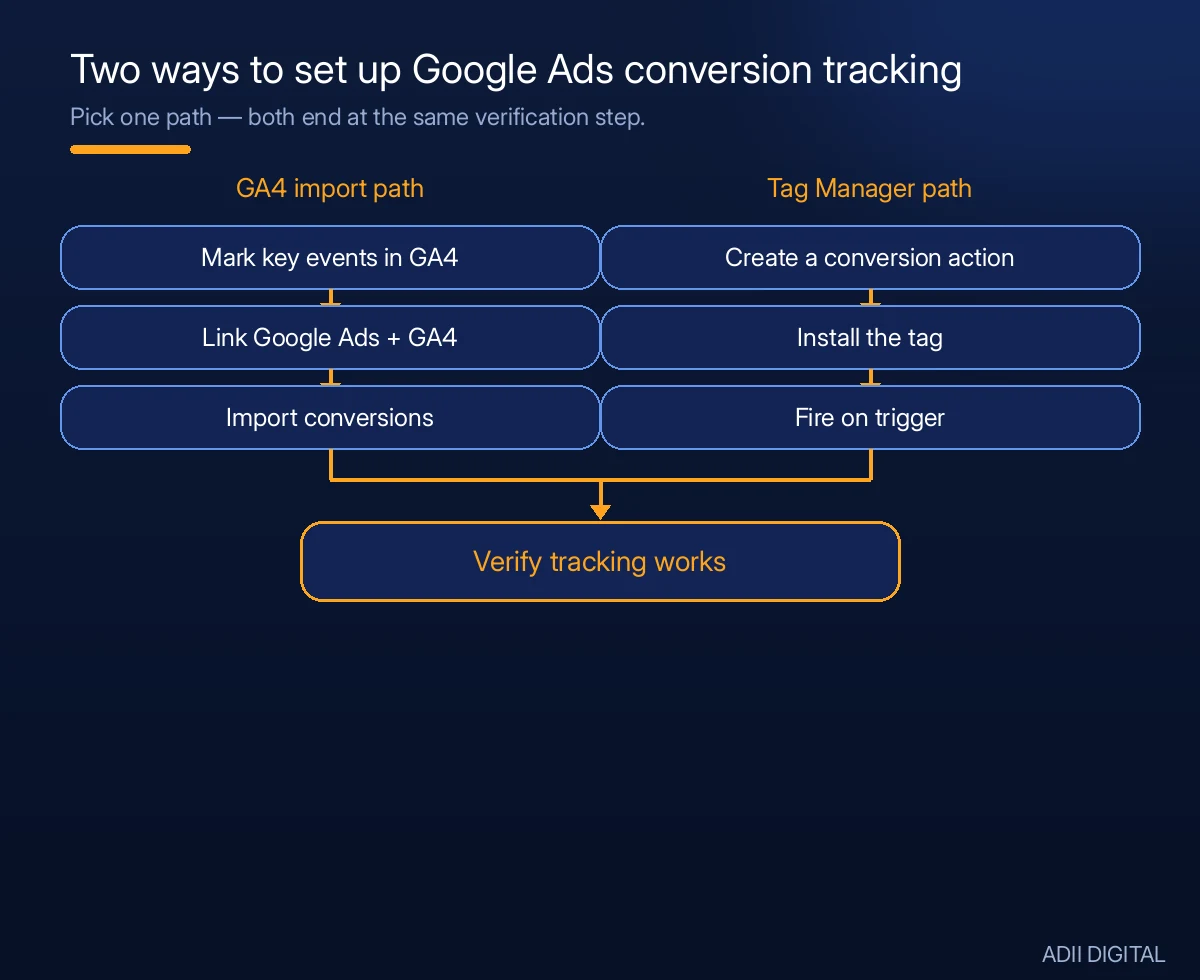
Sometimes you want conversions defined directly in Google Ads rather than imported from GA4 — for example, when you need different conversion windows or values than GA4 uses. Here’s the Tag Manager route:
Step 1: Create the Conversion Action in Google Ads
- Go to Goals, then Conversions, then Summary in Google Ads.
- Click the plus button and choose Website as the conversion source.
- Fill in the details: conversion name, value (a fixed amount, different values per transaction, or no value), and count (every conversion or one per click — use “one” for leads, “every” for purchases).
- Set your attribution model. Data-driven is the default and works well for many accounts.
Step 2: Install the Google Tag in Tag Manager
- Google Ads gives you two snippets: a global site tag and an event snippet. With Tag Manager, you handle them as tags.
- In Tag Manager, create a new tag using the built-in “Google Ads Conversion Tracking” tag type.
- Paste in your Conversion ID and Conversion Label from Google Ads.
- Set the trigger to fire on the right page — usually your thank-you or order-confirmation page.
Step 3: Fire the Tag on the Right Trigger
- For a thank-you page: use a Page View trigger filtered to that page’s URL.
- For a button click or form submit without a thank-you page: use a Click or Form Submission trigger, and test carefully — form triggers are a common source of setup problems.
- Publish your Tag Manager container. Until you hit publish, nothing goes live.
How Do You Verify Your Tracking Is Working?
Don’t skip this. Broken tracking that nobody checks is worse than no tracking, because it creates false confidence. If a check fails, our guide on GA4 conversions not tracking covers duplicate-tag and trigger fixes.
- Use Tag Assistant. Google’s Tag Assistant (tagassistant.google.com) lets you preview your site and watch tags fire in real time as you complete a test conversion.
- Check Google Ads status. In Goals, then Conversions, each action shows a status. “Recording conversions” means data is flowing. “No recent conversions” after a week of traffic means something’s wrong.
- Do a live test. Click through your own funnel and complete a conversion. Then check GA4’s real-time reports and Google Ads to confirm it registered.
- Compare numbers. Your conversion counts in Google Ads should roughly line up with what your website backend or CRM shows. Small differences are normal (attribution windows, cookie issues), but big gaps signal a problem. Our guide to Google Ads conversion tracking not working walks through the common fixes.
What Are the Most Common Setup Mistakes?
These are among the most common and costly mistakes:
- Counting page views as conversions. Tracking visits to your contact page instead of actual form submissions inflates your numbers and teaches Google’s bidding to optimize for the wrong thing.
- Double counting. Running both GA4-imported conversions and Tag Manager conversions for the same action without deduplication. Pick one source per conversion.
- Wrong “count” setting. Using “every” for lead forms means one person submitting twice counts as two leads. For lead gen, “one” is almost always right.
- No conversion value. Without values, Smart Bidding can’t tell a $20 sale from a $2,000 sale. Add values wherever you can — even rough ones beat nothing.
- Tracking the wrong events as primary. Google Ads lets you mark conversions as primary (used for bidding) or secondary (observed only). Keep only real business outcomes as primary. Newsletter signups and page scrolls belong in secondary.
- Forgetting phone calls. If customers call you, set up call tracking. Otherwise a meaningful share of your conversions can stay invisible.
How Should You Structure Primary vs. Secondary Conversions?
This deserves its own section because it quietly makes or breaks Smart Bidding:
- Primary conversions feed directly into bidding. Google’s automated strategies optimize toward these. Keep this list short: purchases, qualified leads, booked appointments — the actions that equal revenue.
- Secondary conversions are tracked for observation only. They don’t influence bidding. Put softer actions here: email signups, brochure downloads, video views.
Review this setup quarterly. Businesses evolve, and a conversion that mattered last year might be noise now. Once the structure is right, the next lever is the page itself — see how to improve website conversion rate.
What About Enhanced Conversions?
Enhanced conversions send hashed first-party data (like an email address collected at checkout) to Google alongside the conversion. Google matches it to the signed-in user who clicked your ad, which improves tracking accuracy — especially with cookie restrictions tightening.
- It’s worth setting up if you collect emails or phone numbers at the point of conversion.
- The data is hashed before it leaves your site, so you’re not sending raw personal info to Google.
- In Tag Manager, you enable it in your Google Ads conversion tag settings with a few extra fields.
It can be a relatively quick upgrade with a real payoff once your base tracking works.
Frequently Asked Questions
How long does it take for conversions to show up in Google Ads?
Often within a few hours, though processing can take up to around a day. If nothing appears after a full day of confirmed test conversions, something in the setup is broken — check your tags and triggers first.
Should I import conversions from GA4 or create them directly in Google Ads?
Importing from GA4 is simpler and keeps definitions consistent across both platforms. Creating them directly in Google Ads gives you more control over attribution windows and counting. If you’re unsure, start with the GA4 import — you can always switch later.
Why do my Google Ads conversions not match my website’s numbers?
Small differences are normal. Google Ads attributes conversions to the ad click within your chosen window, while your website counts everything. Bigger gaps usually mean double counting, missing events (like phone calls), or tags firing on the wrong pages.
Do I need a developer to set up conversion tracking?
Not necessarily. If your site already runs Google Tag Manager, a marketer can handle the whole setup using this guide. You’ll only need a developer if Tag Manager isn’t installed, your checkout is custom-built, or your forms don’t trigger standard events.
What is a key event in GA4?
A key event is GA4’s term for an event you’ve marked as important — it replaced the old “conversion” label in GA4. Marking events like purchases or lead submissions as key events is what makes them available to import into Google Ads as conversions.
Conversion tracking is one of those jobs that’s simple in theory and fiddly in practice — one wrong trigger and your data’s off for months. If you’d rather have it done right the first time, take a look at our digital marketing services and we’ll set the whole thing up for you.