
To connect HubSpot CRM to your Shopify store, install the free HubSpot app from the Shopify App Store, sign in to your HubSpot account, and authorize the connection. The integration then syncs your products, customers, and orders automatically, letting you build abandoned cart emails, post-purchase flows, and segmented campaigns right inside HubSpot. Setup itself is mostly point-and-click, and the steps below walk through it in order.
In This Article
- What Do You Need Before You Start?
- Step 1: How Do You Install the HubSpot App on Shopify?
- Step 2: How Do You Authorize the Connection?
- Step 3: How Do You Set Up the Data Sync?
- Step 4: How Do You Map Your Customer Fields?
- Step 5: How Do You Build Your First Automations?
- How Do You Segment Your Shopify Customers in HubSpot?
- What Reports Should You Set Up?
- What Are the Common Problems (and Fixes)?
- Frequently Asked Questions
- Is the HubSpot and Shopify integration really free?
- Will connecting HubSpot slow down my Shopify store?
- Can I use HubSpot for email instead of Shopify Email or Klaviyo?
- What happens to my data if I disconnect the integration?
- Do I need a developer to set this up?
Once it is connected, the real value comes from the automations you build on top of it. This guide covers the full setup plus the workflows worth building first. Note: menu labels and screens may have shifted since this guide was written, as HubSpot and Shopify update their interfaces regularly, so use the names below as a guide if a label has moved.
What Do You Need Before You Start?
Gather these before you begin so the setup goes smoothly:
- A Shopify store where you have admin or app-install permissions
- A HubSpot account (the free CRM works for the basic integration)
- About 20 minutes of uninterrupted time
If you have a large existing customer list, it helps to clean it up first. Remove obvious junk addresses and duplicates in Shopify before syncing, so you do not import a mess into HubSpot.
Step 1: How Do You Install the HubSpot App on Shopify?
Start in your Shopify admin:
- Go to Apps in the left sidebar, then click Shopify App Store
- Search for “HubSpot” and open the official HubSpot app listing (published by HubSpot)
- Click Install, then Install app on the permissions screen
- You will be redirected to HubSpot. Log in to the HubSpot account you want to connect
Double-check you are installing the official app. There are third-party connectors with similar names, but the official HubSpot integration is free and maintained by HubSpot itself.
Step 2: How Do You Authorize the Connection?
After logging in to HubSpot, you will see a permissions screen asking you to authorize data sharing between Shopify and HubSpot.
- Review the permissions (they cover products, customers, orders, and store activity)
- Click Connect or Authorize to approve
- You will land back in Shopify with the HubSpot app installed
That is the connection itself. Everything from here is configuration.
Step 3: How Do You Set Up the Data Sync?
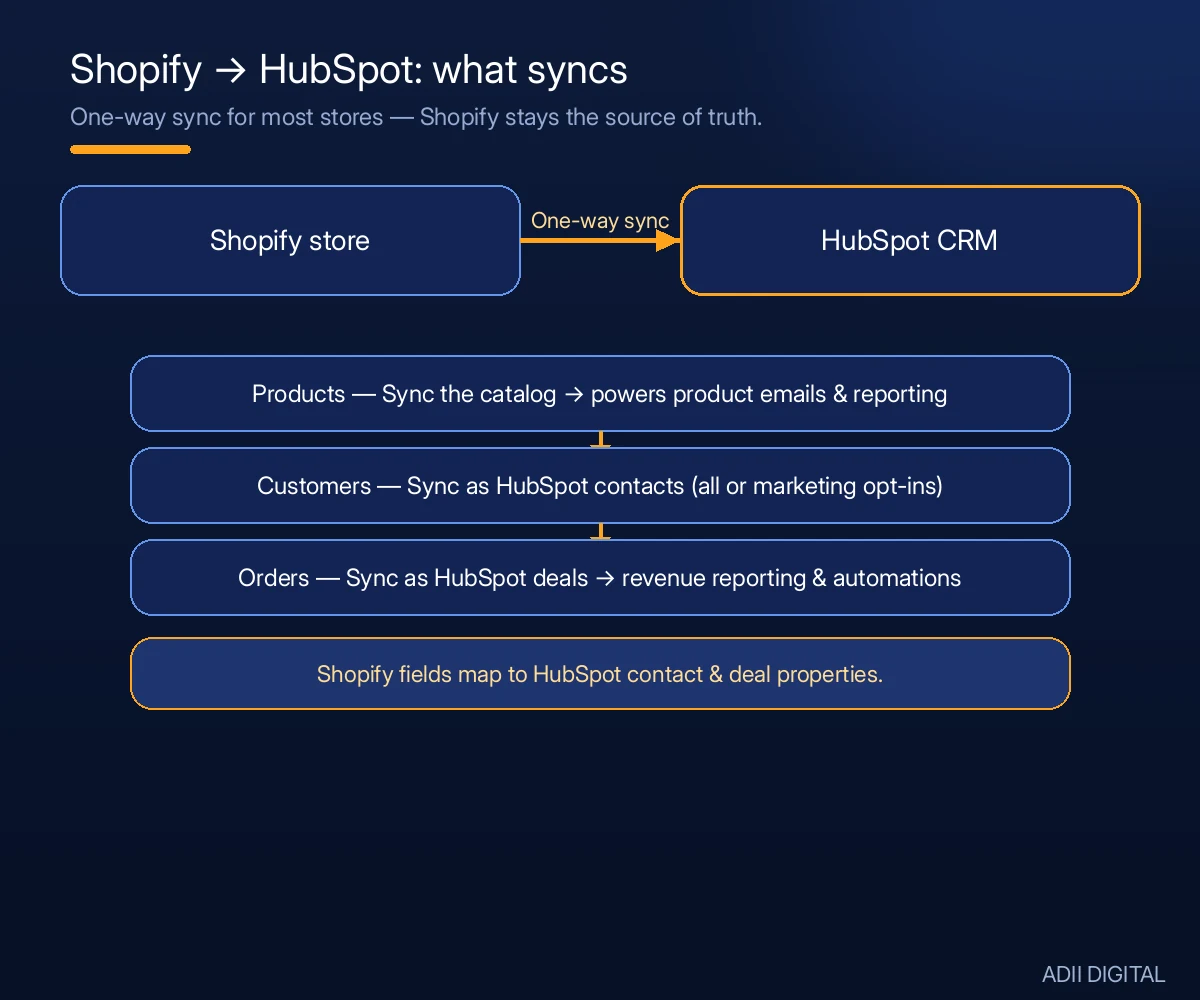
Inside the HubSpot app in Shopify (or in HubSpot under Settings > Integrations > Connected Apps > Shopify), configure what syncs and how:
- Products. Turn on product sync so HubSpot knows your catalog. This powers product-based emails and reporting.
- Customers. Sync Shopify customers as HubSpot contacts. Decide whether to sync all customers or only those who opted in to marketing.
- Orders. Sync orders as HubSpot deals. This is what makes revenue reporting and order-based automations possible.
- Sync direction. For most stores, one-way sync (Shopify to HubSpot) is enough. Two-way sync is available but adds complexity most small stores do not need.
The first sync can take a while if you have thousands of customers and orders. Let it run. You can check progress in the integration settings page.
Step 4: How Do You Map Your Customer Fields?
Field mapping decides which Shopify data lands in which HubSpot contact property. The defaults cover the basics (name, email, address, total spent), but review them:
- Make sure marketing opt-in status maps correctly so you only email people who consented
- Map any custom Shopify fields you rely on, like customer tags or notes
- Check that order totals and order counts flow into the right deal properties
Getting this right at the start saves painful cleanup later. A contact who opted out in Shopify but shows as opted in inside HubSpot is a compliance problem waiting to happen.
Step 5: How Do You Build Your First Automations?
With data flowing, build these workflows in HubSpot as part of your broader email marketing strategy (Marketing Hub > Automation > Workflows). Start with these three:
Abandoned cart recovery:
- Trigger: contact abandons a checkout (HubSpot tracks this from Shopify)
- Email 1 (1 hour later): friendly reminder with the cart contents
- Email 2 (24 hours later): add social proof or reviews of the products left behind
- Email 3 (48-72 hours later): a small incentive, such as a discount code, to close the sale
Welcome series for new customers:
- Trigger: first order synced from Shopify
- Email 1: order confirmation and thank-you
- Email 2 (3 days later): how to get the most from the product
- Email 3 (7 days later): review request plus a discount on the next order
Win-back campaign:
- Trigger: customer has not ordered in 90 days
- Email 1: “We miss you” with new arrivals
- Email 2 (7 days later): a special offer to come back
HubSpot has pre-built templates for several of these, so you often start from a template and customize the copy and timing.
How Do You Segment Your Shopify Customers in HubSpot?
Segmentation is where the integration earns its keep. Instead of blasting your whole list, you can target precisely:
- VIPs. Customers with lifetime spend above a threshold. Send early access and exclusive offers.
- One-time buyers. People with exactly one order. Target them with cross-sell campaigns for complementary products.
- Cart abandoners. Anyone who abandoned checkout in the last 30 days but never purchased.
- Browsers. Contacts who viewed products but never added to cart. Great audience for new-arrival emails.
- At-risk customers. Past buyers whose last order was 60-180 days ago. Win-back territory.
Build these as active lists in HubSpot so they update automatically as customer behavior changes.
What Reports Should You Set Up?
Connect the data to decisions with a few core reports, so you can keep measuring digital ROI:
- Revenue by email campaign. Which campaigns actually drive Shopify orders?
- Abandoned cart recovery rate. What percentage of abandoned carts turn into orders after your emails?
- Customer lifetime value by segment. Are your VIPs really worth more? By how much?
- New vs. returning customer revenue. Shows whether your marketing grows the base or just milks existing buyers
HubSpot’s Shopify integration feeds order data into its reporting automatically, so most of these are a few clicks to build once the sync is healthy.
What Are the Common Problems (and Fixes)?
A few things trip stores up during and after setup:
- Sync delays. The initial sync of a large store can take hours. Do not rebuild anything until it finishes.
- Duplicate contacts. If the same customer exists with different emails in Shopify and HubSpot, you get duplicates. HubSpot’s dedupe tools can merge them.
- Opt-in mismatches. Audit a sample of contacts after syncing to confirm marketing consent carried over correctly.
- Workflow enrollment surprises. Test every workflow with a test contact before turning it on. An abandoned cart email firing for completed orders is embarrassing and avoidable.
Frequently Asked Questions
Is the HubSpot and Shopify integration really free?
The integration app itself is free to install. What you can do with it depends on your HubSpot plan. The free CRM covers contact syncing and basic features, while advanced automation and workflows require a paid Marketing Hub plan. Check HubSpot’s official pricing page for current plans, since they change.
Will connecting HubSpot slow down my Shopify store?
No. The integration syncs data between the two platforms in the background, so it should not noticeably affect your storefront speed.
Can I use HubSpot for email instead of Shopify Email or Klaviyo?
Yes. Many stores run all their marketing email through HubSpot once the integration is live. Whether it is the right choice depends on your plan level and how deep your automation needs go. Stores with simple needs often find dedicated ecommerce email marketing software simpler and cheaper.
What happens to my data if I disconnect the integration?
Disconnecting stops future syncs. Data already synced into HubSpot stays there unless you delete it. If you reconnect later, check the integration settings to confirm what re-syncs before relying on it.
Do I need a developer to set this up?
For a standard store, no. The app install, authorization, and basic sync are all point-and-click. You might want help if you have custom fields, a complex tech stack, or advanced workflow logic, but most stores can handle the core setup themselves.
Getting the integration connected is the easy part. Turning it into abandoned cart flows, win-back campaigns, and segments that lift revenue takes strategy and setup time, along with the right digital marketing tools around the integration. If you would rather have experts handle it, our digital marketing services include CRM setup and marketing automation done for you at https://adiidigital.com/services/.